It’s 2026, and your phone probably knows more about your health than your doctor does. Step counts, sleep patterns, heart rate, glucose readings, even reproductive health data are all stored inside fitness and medical apps. That data can be valuable—not just to you, but to data brokers, advertisers, and third-party software developers. If you’ve been wondering how to revoke health data access on your phone in 10 minutes, this guide will walk you through every step, even if you’re not a privacy expert.
Why You Should Audit Your Health Data Permissions Now
Health data is one of the most sensitive categories your phone stores. Unlike a browsing history or a list of contacts, your health data can reveal conditions, medications, and routines. In recent years, operating systems have made it easier for apps to request access in bundles, and many users tap “Allow” without reading the prompt.
The permissions you accepted last year may not reflect your current needs. That old sleep-tracking app you no longer open might still be writing entries to Apple Health or Health Connect. A mental health app could be sharing aggregated mood scores with analytics companies. By spending just a few minutes checking your privacy settings for fitness and medical apps, you can close these quiet data flows.
Before You Start: What You Need for a Quick Privacy Audit
You don’t need a computer or any special tools. To complete this audit in 10 minutes, you only need:
- Your iPhone or Android phone, updated to the latest operating system.
- About 10 minutes of uninterrupted time.
- A list of the apps you currently use for fitness or health. If you can’t remember them, the process below will show you exactly what has access.
- Your phone’s lock-screen passcode or biometric unlock.
If you’re worried about losing data, do not delete any apps during this audit. Deleting an app can sometimes remove saved workout or health records from your phone. The goal here is to revoke access, not erase history.
Revoking iOS Health App Permissions on iPhone
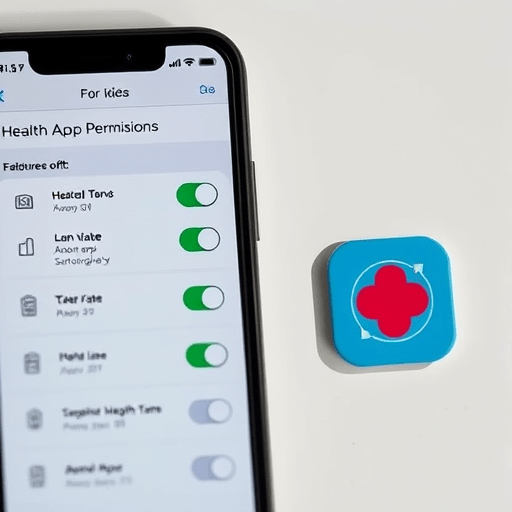
On iOS, Apple Health is the central repository. Most fitness and medical apps connect to it when they need step counts, heart rate, or body measurements. The privacy setting has changed slightly over recent iOS versions, but the same menu works on current releases.
Use the Health App’s Privacy Menu
- Open the Health app on your iPhone.
- Tap your profile picture in the top-right corner.
- Choose “Apps and Services” under the Privacy section.
- You’ll see every app that has requested access to health data. Tap an app to review what it can read and write.
- Turn off all toggles for data you don’t want that app to use. You can leave “Allow Heart Rate” on for your workout app while revoking “Heart Rate Variability” or “Resting Heart Rate” if you want.
For a broader approach, go to Settings > Privacy & Security > Health. This screen lists the same apps but groups them by data category. You can tap “Let Apps Access Health Data” and disable the entire section if you prefer. However, that may break apps you still use.
Remember the “App Privacy Report” on iOS
If you want to see exactly how often an app reads health data, iOS’s App Privacy Report is helpful. Go to Settings > Privacy & Security > App Privacy Report and turn it on. After you revoke access, the report will show which apps are no longer accessing your information. It is a useful way to confirm your changes are working.
Revoking Android Health Permission Settings
Android historically handled health data through individual app permissions. That changed with Health Connect, the platform-level fitness and medical data hub. Health Connect is now the default connection layer for most Android health apps.
Audit Health Connect First
- Open Settings on your Android phone.
- Scroll to Google Services or Apps, depending on your manufacturer’s skin.
- Tap Health Connect.
- Choose App data access.
- You’ll see two tabs: “Allowed apps” and “Blocked apps.” Tap each allowed app and remove permissions for specific data types such as Activity, Sleep, Nutrition, or Body measurements.
If you can’t find Health Connect, use the search bar in Settings and type “Health Connect.” On Samsung devices, it may also appear as “Health platform” in the Galaxy Wearable settings.
Check Individual Android App Permissions
Not every app uses Health Connect. Some older medical apps still read sensors directly. To revoke those, go to Settings > Apps, tap the app name, then tap Permissions. Look for “Body sensors,” “Physical activity,” and “Location.” Turn off anything you don’t trust. The “Physical activity” permission is especially important because it lets apps see your steps and movement throughout the day without needing the Health Connect hub.
Fitness and Medical Apps: A Quick Difference to Keep in Mind
Fitness apps like running trackers, calorie counters, and sleep monitors usually store their data locally or in the OS health hub. You can revoke their access without losing your workout history. The app may still show old data, but it will no longer receive new updates from Apple Health or Health Connect.
Medical apps, on the other hand, often sync with a clinic, hospital, or lab. Revoking health data access does not delete your medical records from the provider’s server. It only stops future data sharing from your phone. If the app requires access to the Health app to function, like importing blood glucose readings from a continuous monitor, you may need to keep some permissions enabled. In that case, revoke everything except the specific data the medical device needs.
After Revoking Access: What to Check Next
Your permission audit doesn’t end with toggles. Here are a few additional places to look:
- In-app privacy settings. Many fitness apps have their own “Data sharing” or “Connect” menu inside the app. Turn off third-party partners there too.
- Advertising ID reset. On iPhone, go to Settings > Privacy & Security > Tracking and disable “Allow Apps to Request to Track.” On Android, go to Settings > Privacy > Ads and reset your advertising ID.
- Connected devices. If you paired a smart scale, glucose meter, or wearable, check the companion app to see where it exports your data. Some devices can send data directly to a cloud service, not just your phone.
- Offline data and backups. Revoking access blocks future syncing, but past data may still exist in app backups. You can delete individual entries from Apple Health or Health Connect, or use the OS’s “Export All Health Data” to review what has been shared.
Common Mistakes During a Health Data Cleanup
When people try to revoke health data access on their phone in 10 minutes, they often make a few fixable mistakes. The biggest one is deleting the app entirely. That removes the user interface, but it does not automatically erase the health data that has already been stored in the OS. You still need to open Apple Health or Health Connect and delete those records manually if that’s your goal.
Another mistake is assuming that revoking permission revokes data already sent to the app’s servers. It doesn’t. If an app has already uploaded your health data, you need to request deletion from within the app or contact the developer.
Finally, don’t forget “system services” that are less obvious. Both iOS and Android have background features such as “Fitness Tracking,” “Workout Detection,” and “Motion Calibration.” These are not third-party apps, but they can still collect and store location and motion data. You can turn them off under System Services on iOS or Location Services on Android.
When It Makes Sense to Keep Health Data Access On
Not every health data connection is risky. For example, a prescribed glucose monitor that sends readings directly to your endocrinologist is dangerous to revoke. A maternity care app that shares your due date with your midwife clinic is probably useful. If an app is tied to a legitimate medical provider, revoking access may disrupt your care.
A good rule of thumb: keep health data access only for apps you have used in the last 30 days and for devices that are actively connected. Everything else can go.
The Bottom Line
You don’t have to be a privacy professional to take control of your health data. With the permission screens built into iOS and Android, you can revoke health data access on your phone in 10 minutes and then walk away with a much clearer picture of who does—and doesn’t—see your personal health information. A quick monthly check is enough to keep fitness and medical apps from turning your body into just another data stream.