Few things are more frustrating than finishing a treadmill session, glancing at your Garmin watch, and seeing a cadence number that feels wildly off. You know your turnover was steady, yet the device insists you were shuffling at 155 steps per minute or sprinting at 210. If you have ever wondered why your Garmin keeps misreporting cadence on treadmill runs, the answer usually lies in how the watch measures motion without the help of GPS. Fortunately, the fix takes less time than your warm-up jog.
How Garmin Calculates Cadence in the First Place
On the road or trail, Garmin watches use an internal accelerometer to detect the rhythmic bounce of your hips with each footstrike. The algorithm translates that vertical oscillation into steps per minute. Outdoors, GPS adds a layer of context, helping the watch confirm pace and stride length. On a treadmill, GPS is either unavailable or extremely weak, so the watch leans entirely on the accelerometer. That is where things start to drift.
Because a treadmill belt pulls your foot backward at the same speed the console reports, the accelerometer does not register the same forward propulsion it senses outdoors. The watch has to infer cadence from hip motion alone, and small variations in how you run, where you wear the watch, or even the stiffness of the treadmill deck can throw the estimate off.
The Most Common Reasons for Inaccurate Treadmill Cadence
Several culprits contribute to a misbehaving cadence field, and most are easy to address once you know what to look for.
1. Wrist Position and Watch Fit
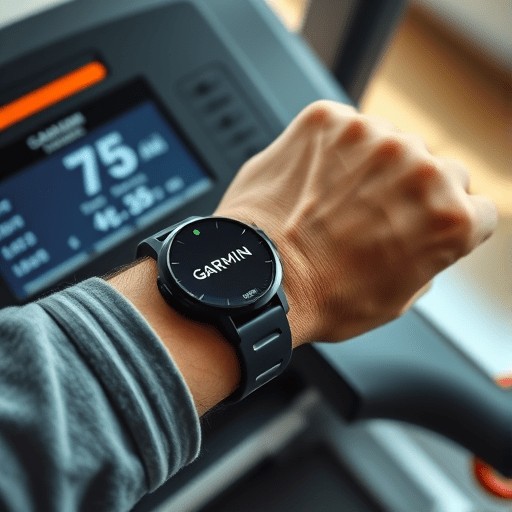
If your watch slides up and down your forearm, the accelerometer reads exaggerated vertical motion. A snug, two-finger-width fit above the wrist bone keeps the sensor stable and the data clean. Many runners do not realize that loosening the band during sweaty indoor sessions is the root of their cadence chaos.
2. Stride Pattern Differences Indoors
Treadmill running encourages a slightly shorter, more frequent stride, especially at slower paces. The watch is calibrated for outdoor biomechanics and may misread this compact pattern as higher cadence. Meanwhile, runners who hold the handrails pull their arms out of the natural counterbalance, distorting the hip bounce signal entirely.
3. Outdated Firmware or Worn Sensors
Garmin periodically releases firmware updates that refine accelerometer-based metrics. An older software build can misclassify steps on a stable belt, particularly on models like the Forerunner 265 or Fenix 7 that rely heavily on motion algorithms.
4. Lack of GPS Lock-In
Some Garmin watches default to GPS-only cadence calculation. Without satellites indoors, the field may freeze at the last outdoor value or display a wildly smoothed average. Knowing whether your model supports an accelerometer-only cadence mode is essential for accurate indoor data.
How to Fix Garmin Treadmill Cadence in About Five Minutes
Before you abandon the treadmill entirely, walk through these steps. Most runners see an immediate improvement after the first two.
Step 1: Enable the Indoor Run Profile Correctly
Open the activity settings on your watch or in Garmin Connect, then select Run Indoor rather than the generic Run profile. The indoor profile tells the watch to disable GPS reliance and switch fully to accelerometer-based cadence. This single change resolves misreporting for many users.
Step 2: Tighten the Watch and Reposition It
Take thirty seconds to snug the band down one notch. If you have a Forerunner or Fenix, keep the watch flat against the top of your wrist. Avoid wearing it over a long sleeve or sweatband, which dampens motion detection.
Step 3: Update Firmware via Garmin Connect
Plug your watch in, open Garmin Connect on your phone, and check for updates. Garmin frequently pushes cadence algorithm tweaks that improve treadmill accuracy. The update itself takes a few minutes, but the actual user input is minimal.
Step 4: Use a Foot Pod for the Cleanest Data
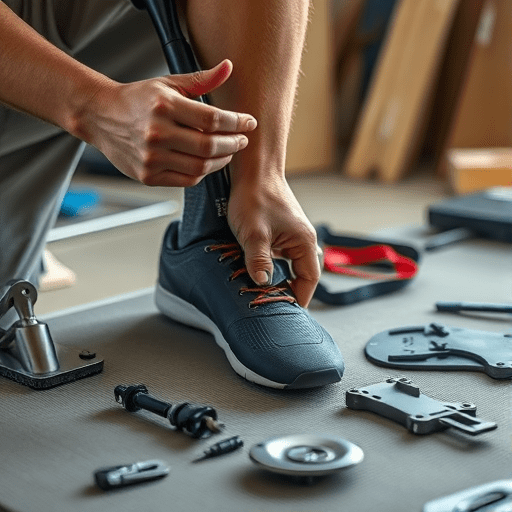
If precision matters to your training plan, pair your watch with the Garmin Foot Pod. This small accelerometer clips to your shoelaces and measures actual foot strikes, completely bypassing the wrist sensor. Once paired, your watch automatically prioritizes foot pod data over the internal accelerometer.
Step 5: Manually Calibrate Stride Length Indoors
After a treadmill run where the console distance is accurate, go to Garmin Connect, open the activity, and save the known distance. Garmin uses this data to refine your stride length, which indirectly improves cadence accuracy on future indoor sessions.
When to Suspect a Hardware Issue Instead
If cadence reads as zero, stays stuck on a single number, or jumps erratically between 120 and 220 spm, the accelerometer itself may be struggling. Test it outdoors on a smooth track. If outdoor cadence is accurate but treadmill cadence is not, the issue is software or fit related. If both are wrong, consider contacting Garmin support, especially if the watch is under warranty. Sensors can degrade, particularly after heavy sweat exposure or impact.
Bonus Tips for Better Indoor Running Data Overall
Improving cadence accuracy often improves heart rate and pace reliability too. Try these small adjustments during your next treadmill session:
- Warm up on the belt for two minutes before saving the activity, giving the sensor time to settle into your motion pattern.
- Avoid handrail gripping, which masks natural arm swing and confuses the algorithm.
- Run in the center of the belt, where the deck flexes most predictably, reducing vibration noise.
- Use a chest strap instead of the optical heart rate sensor for tighter interval training data.
For runners training through winter or logging base miles in a hotel gym, these tweaks transform the treadmill from a metric wasteland into a reliable training tool.
The Bottom Line on Garmin Treadmill Cadence
Garmin watches are remarkably capable outdoors, but treadmills create a unique measurement challenge. A misreported cadence number is rarely a sign of a broken device. More often, it is the result of a default activity profile, a loose watch fit, or outdated firmware. By switching to the indoor run profile, tightening the band, and pairing a foot pod when precision matters, you can fix the issue in under five minutes and get back to focusing on what really counts: the work itself. Indoor runs can produce just as much fitness gain as outdoor miles, and now your data will reflect that accurately.