You’ve upgraded to one of the latest graphics cards, paired it with a blazing-fast PCIe 5.0 NVMe drive, and loaded up a next-generation title that promises DirectStorage-accelerated loading. Yet, despite the hardware checklist looking immaculate, frame pacing still hiccups during traversal, and textures occasionally pop in mid-combat. The culprit is rarely the GPU or the raw SSD throughput you see advertised. More often, the silent saboteur is your drive’s firmware, the low-level code that governs how storage controllers queue, prioritize, and deliver data to your system. Understanding this layer is the key to unlocking the asset streaming experience DirectStorage was designed to deliver.
What DirectStorage Actually Demands From Your Drive
DirectStorage shifts the decompression and asset-placement workload closer to the GPU, but it does not eliminate the storage pipeline. Instead, it raises expectations dramatically. Instead of loading a few hundred megabytes at level start, modern engines stream thousands of small, granular asset chunks every second. The workload changes from burst-heavy sequential reads to sustained, latency-sensitive random reads at high queue depths.
Your SSD’s marketing speed, often quoted at 12,000 MB/s or higher, is measured under ideal sequential conditions with large block transfers. Real DirectStorage behavior looks nothing like that benchmark. It generates thousands of tiny I/O operations per second, each measured in microseconds. Whether those operations complete smoothly depends on the firmware’s internal scheduling, garbage collection timing, and thermal management policies.
The Three Firmware Behaviors That Break Streaming
- Aggressive thermal throttling: Some firmware revisions throttle read performance aggressively to protect NAND longevity. When sustained streaming warms the controller, the drive silently drops to slower states.
- Overzealous garbage collection: Background housekeeping routines can seize the controller during active streaming, creating micro-stalls that manifest as in-game hitches.
- Suboptimal queue management: Firmware that prioritizes sequential throughput may starve the small, parallel requests DirectStorage needs most.
How SSD Firmware Quietly Bottlenecks Next-Gen Asset Streaming
The relationship between firmware and frame pacing is indirect, which is why most troubleshooting guides miss it. When a texture fails to arrive on time, the engine has to choose: stall the frame, lower the mipmap level, or display a lower-resolution substitute. Any of these responses is visible to you as a stutter. The GPU did its job. The SSD delivered the bytes it could. The gap between expected and delivered latency lives in the firmware.
Newer drives from manufacturers such as Samsung, WD, and Crucial have released firmware updates specifically targeting DirectStorage workloads. These updates adjust the controller’s internal threading model, reduce the latency of small-block reads, and improve behavior under sustained mixed workloads. If your drive shipped with early 2025 firmware and you have not updated, you are likely missing optimizations designed precisely for the games shipping now.
The Queue Depth Illusion
Many enthusiasts obsess over queue depth, the number of simultaneous read requests in flight, as if it were a hardware setting. In reality, queue depth is enforced and shaped by the firmware. A drive with excellent raw silicon but poor queue arbitration will deliver worse real-world streaming than a slightly slower drive with intelligent request scheduling. This is also why two identical model numbers can behave differently if one ships with older firmware.
How to Test Whether Firmware Is Your Stutter Source
Before chasing a drive replacement, you can diagnose firmware-related bottlenecks with a few straightforward tests. The goal is to measure small-block random read latency under sustained load, not peak sequential throughput.
Step 1: Identify Your Drive and Current Firmware
Open a tool such as CrystalDiskInfo, HWiNFO, or your manufacturer’s diagnostic utility. Record the exact model number and firmware revision string. Compare it against the latest revision listed on the manufacturer’s support page. If a newer revision exists, note the changelog. Phrases like “improved random read performance,” “DirectStorage optimization,” or “reduced latency under sustained workloads” indicate relevant updates.
Step 2: Benchmark Small-Block Random Reads
Run a synthetic test using fio or a similar tool configured for 4KB random reads, queue depth 32, across the full drive capacity. The metric that matters is not throughput but the 99th percentile latency. Values consistently above 200 microseconds suggest firmware-level queuing issues. Compare results before and after any firmware update.
Step 3: Observe In-Game Frame Timing
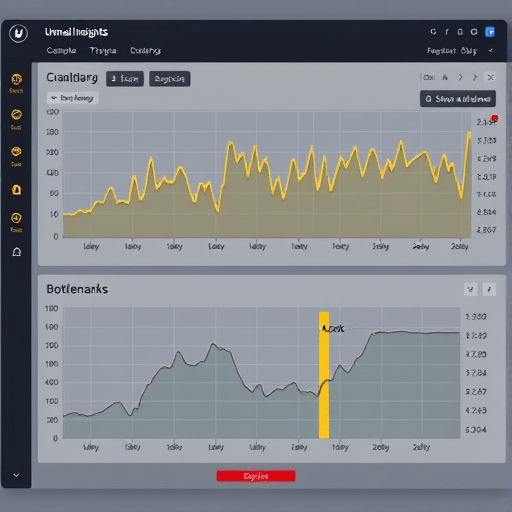
Enable your engine’s built-in frame timing overlay, such as PresentMon on Windows or CapFrameX. Play through a streaming-heavy section: dense urban areas, foliage-rich forests, or open-world traversal with rapid camera movement. Record the timing graph. Look for spikes where GPU time remains low but frame time jumps. These are storage-bound stalls, the signature of firmware-induced latency.
Beyond Firmware: Other Silent Storage Variables
Firmware is the most overlooked variable, but not the only one. Drive temperature plays a significant supporting role. NVMe controllers throttle predictably when internal sensors cross thresholds, often in the 70–80°C range. A drive mounted without airflow in a densely packed case can spend much of its time in a derated state. A simple heatsink or repositioning can dramatically improve consistency.
Over-provisioning, the practice of leaving a portion of the SSD unpartitioned, also affects garbage collection efficiency. Drives filled above 80% capacity have less room for internal housekeeping, increasing the chance that background operations interfere with active reads. Reserving even 10–15% of capacity can stabilize latency.
The PCIe Slot and Motherboard Factor
If your drive sits behind a chipset link rather than directly on the CPU’s PCIe lanes, expect additional latency. DirectStorage benefits measurably from direct CPU-attached NVMe slots. If your motherboard manual places a slot under “Chipset” rather than “CPU,” and your case allows, consider relocating the drive.
What To Do Once You Have Diagnosed the Issue
If your firmware is outdated and the changelog mentions streaming or latency improvements, update it following the manufacturer’s safe-update procedure. Most utilities preserve data, but a backup is non-negotiable. After updating, re-run your benchmarks and in-game frame timing tests.
If your firmware is current and temperatures are controlled, but latency remains inconsistent, the issue may lie in the drive’s controller architecture itself. Some early PCIe 5.0 controllers prioritized peak benchmarks over sustained consistency. In that case, the practical solution is replacing the drive with a revision that prioritizes low-latency sustained reads, even at the cost of slightly lower peak throughput.
Finally, verify that your operating system and chipset drivers support the full DirectStorage pipeline. Windows 11 with recent optional updates enables the GPU decompression path that older stacks lack. Without that, even a perfect firmware-tuned drive is working through a software bottleneck.
Conclusion
The promise of DirectStorage is real, but it is a promise fulfilled only when the entire storage stack, including firmware, thermal design, and system topology, supports the workload it generates. A 2026 GPU paired with a poorly tuned drive will still stutter because the bottleneck lives one layer below the marketing benchmarks. By updating firmware, benchmarking small-block latency, and observing frame timing during streaming-heavy scenes, you can identify whether your drive is silently working against you. Once corrected, the difference is immediately visible: smoother traversal, fewer texture pops, and the kind of seamless world continuity that next-gen gaming was meant to deliver.