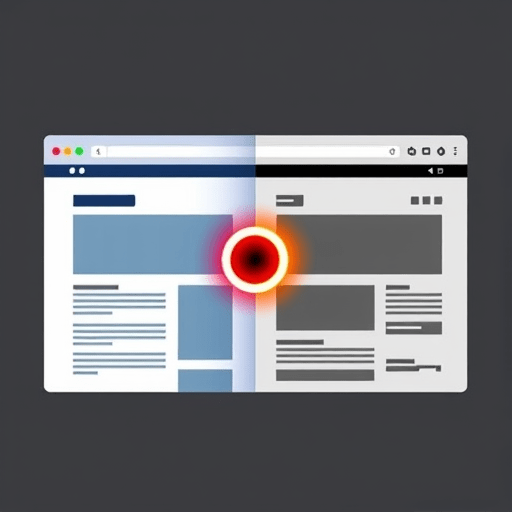
If you’ve ever wanted to add a dark mode toggle to your website that actually remembers which theme your visitors chose, you’re in the right place. This step-by-step beginner tutorial walks you through building a lightweight dark mode switch using nothing but vanilla JavaScript and the browser’s built-in localStorage API. No frameworks, no build tools, no dependencies. By the end, you’ll have a working toggle that persists across page loads, tabs, and even browser restarts.
Dark mode is no longer a luxury; it’s expected. Modern users actively look for sites respecting their system theme while still offering a manual override. Let’s build something that does both elegantly.
Why LocalStorage Is the Right Tool for Theme Persistence
Before diving into code, let’s quickly clarify why localStorage is the preferred storage option for a dark mode toggle. The Web Storage specification defines two mechanisms: localStorage and sessionStorage. The difference is simple but important:
-
–
localStorage has no expiration date and survives browser restarts.–
sessionStorage only lasts for the duration of the browser tab session.
Since theme preferences should outlive a single browsing session, localStorage is the obvious choice. It offers roughly 5MB of storage per origin, stores values as key-value pairs, and synchronizes across tabs of the same domain through the storage event. That last feature is gold for dark mode: when a user toggles the theme in one tab, every other open tab updates instantly without any extra code.
Step 1: Setting Up the HTML Structure
Every dark mode toggle starts with a button. Let’s keep it semantic and accessible. A real button beats a div with a click handler every time because it ships with keyboard support and screen reader semantics for free.
Here’s the minimal HTML scaffold you can drop into any page:
<button id="theme-toggle" aria-label="Toggle dark mode">🌙</button>
The aria-label is critical. Since the button’s content is an emoji (which screen readers may not announce meaningfully), the label tells assistive technology users exactly what the button does. You can swap the emoji for an inline SVG icon later.
Step 2: Writing the CSS for Both Themes
The trick to a clean dark mode implementation is the data-theme attribute pattern. Instead of toggling classes, we set a data-theme attribute on the <html> element and write CSS selectors that target it.
:root {
--bg-color: #ffffff;
--text-color: #1a1a1a;
}
[data-theme="dark"] {
--bg-color: #121212;
--text-color: #e6e6e6;
}
body {
background-color: var(--bg-color);
color: var(--text-color);
transition: background-color 0.3s ease, color 0.3s ease;
}
This approach scales beautifully. As your site grows, you add new CSS variables inside the [data-theme="dark"] block, and every component using them updates automatically. The transition property is the secret sauce that makes the theme switch feel polished instead of jarring.
Step 3: Reading the User’s Saved Preference on Page Load
This is where localStorage earns its keep. When a page loads, we want to:
-
– Check localStorage for a saved preference.
– If none exists, respect the user’s operating system preference via
prefers-color-scheme.– Apply the resulting theme before the page renders to avoid a flash of incorrect styling.
To prevent the dreaded “flash of unstyled content” or, worse, the “flash of wrong theme,” you should run this script in the <head> of your document, ideally as an inline blocking script that runs before the body parses:
<script>
(function () {
const savedTheme = localStorage.getItem('theme');
const prefersDark = window.matchMedia('(prefers-color-scheme: dark)').matches;
const theme = savedTheme || (prefersDark ? 'dark' : 'light');
document.documentElement.setAttribute('data-theme', theme);
})();
</script>
That Immediately Invoked Function Expression (IIFE) runs synchronously, so by the time the browser paints the page, the correct theme attribute is already in place.
Step 4: Wiring Up the Toggle Button
Now for the fun part: the click handler. Place this script at the bottom of your body or in a separate .js file:
const toggle = document.getElementById('theme-toggle');
const root = document.documentElement;
function setTheme(theme) {
root.setAttribute('data-theme', theme);
localStorage.setItem('theme', theme);
toggle.textContent = theme === 'dark' ? '☀️' : '🌙';
toggle.setAttribute('aria-label', theme === 'dark' ? 'Switch to light mode' : 'Switch to dark mode');
}
toggle.addEventListener('click', () => {
const current = root.getAttribute('data-theme');
setTheme(current === 'dark' ? 'light' : 'dark');
});
Notice how setTheme does four things: updates the DOM, persists the choice, swaps the icon, and updates the accessible label. Centralizing these updates in one function keeps your code maintainable as the project grows.
Bonus: Listen for System Theme Changes
Users who haven’t explicitly chosen a theme often expect the site to follow their operating system. The prefers-color-scheme media query can change at any time, especially when someone toggles dark mode on their laptop. Here’s how to react to those changes:
window.matchMedia('(prefers-color-scheme: dark)').addEventListener('change', (e) => {
if (!localStorage.getItem('theme')) {
setTheme(e.matches ? 'dark' : 'light');
}
});
The crucial detail is the if (!localStorage.getItem('theme')) guard. If the user has explicitly chosen a theme, we should respect that choice and ignore the OS-level change. Only auto-update when the user hasn’t expressed a preference.
Step 5: Cross-Tab Synchronization (Optional but Impressive)
Because localStorage fires a storage event in other tabs of the same origin when it changes, you can sync the theme across tabs for free:
window.addEventListener('storage', (e) => {
if (e.key === 'theme') {
setTheme(e.newValue);
}
});
Now if a user toggles dark mode in tab A, tab B updates instantly without a refresh. This is the kind of polish that separates a beginner project from a professional one.
Common Pitfalls and How to Dodge Them
Even a small dark mode implementation has a few gotchas worth knowing about.
Forgetting the FOUC (Flash of Unstyled Content)
If you load your theme-toggle script in the body or via defer, users will see a flash of the default light theme before your script runs. Always inline the initial theme-setting code in the <head>.
Storing Non-String Values
localStorage only stores strings. If you try to save an object directly, it’ll be silently coerced into the unhelpful string "[object Object]". Always wrap values in JSON.stringify if you need objects, or stick to plain strings like we did.
Ignoring the Storage Event’s Origin Check
The storage event doesn’t fire in the tab that made the change; it only fires in other tabs. That’s actually convenient because it prevents an infinite loop, but it’s a common source of confusion when debugging.
Testing Your Implementation
To verify everything works, run through this checklist:
-
– Toggle the theme, refresh the page, and confirm your selection persists.
– Open the same site in a second tab and toggle there. The first tab should update.
– Clear localStorage via DevTools and reload. The site should match your OS theme.
– Use Chrome DevTools’ Rendering panel to emulate
prefers-color-scheme: dark and watch your site respond.
That’s a real, production-quality dark mode toggle written in roughly 30 lines of vanilla JavaScript. The patterns you’ve learned here extend far beyond theming: any time you need to persist a small piece of UI state, localStorage is a battle-tested tool that works in every browser without polyfills, plugins, or build steps. Pair it with CSS custom properties, and you’ve got a maintainable foundation that will scale as your site grows.