
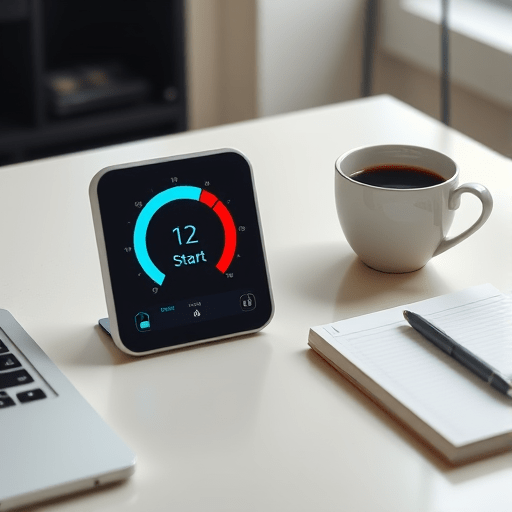
If you’ve ever tried to focus in a world of pinging apps, shared inboxes, and endless browser tabs, you know the Pomodoro Technique isn’t just a productivity theory—it’s a survival strategy. In this hands-on tutorial, you’ll use JavaScript to build a Pomodoro timer from scratch, learning how setInterval, DOM updates, and CSS animations fit together into a polished, practical web app. By the end, you’ll have a tool you can use every day and, more importantly, a deeper understanding of how the front end of modern web applications actually works.
Why Build Your Own Pomodoro Timer in 2026?
There are literally hundreds of Pomodoro apps available, so why write your own? Because building it yourself gives you complete control. You can set your own work/break lengths, change the colors to match your workspace, and even integrate the timer with your own notification system. The real payoff, though, is the learning: a Pomodoro timer is the perfect sized project for practicing setInterval, direct DOM updates, and CSS animations—all three are everywhere in front-end development. Plus, it runs entirely in the browser without needing a single dependency.
Project Setup: HTML and CSS for the Timer Ring
We’ll build a visually clean timer with a circular progress ring. The HTML is intentionally simple, keeping the focus on the JavaScript and CSS behavior that brings it to life.
The HTML Structure
<div class="pomodoro">
  <svg class="progress-ring" width="240" height="240">
    <circle class="ring-track" cx="120" cy="120" r="100"></circle>
    <circle class="ring-progress" cx="120" cy="120" r="100"></circle>
  </svg>
  <div class="timer-display">
    <span id="minutes">25</span>:<span id="seconds">00</span>
  </div>
  <div class="session-label" id="session-label">Focus</div>
  <div class="controls">
    <button id="start">Start</button>
    <button id="reset">Reset</button>
  </div>
</div>
Styling the Progress Ring
The two circles give the ring its visual depth. The track is static; the progress circle changes its stroke-dashoffset to show the remaining time. In CSS we’ll also set up a variable for the ring’s circumference, because we’ll need it in JavaScript.
.progress-ring {
  transform: rotate(-90deg);
}

.ring-track {
  fill: none;
  stroke: #e0e0e0;
  stroke-width: 10;
}

.ring-progress {
  fill: none;
  stroke: #2d7ff9;
  stroke-width: 10;
  stroke-linecap: round;
  transition: stroke-dashoffset 0.3s linear;
}

.pomodoro {
  display: flex;
  flex-direction: column;
  align-items: center;
  gap: 16px;
}

.timer-display {
  font-family: 'Courier New', monospace;
  font-size: 3rem;
  font-weight: 600;
  margin-top: -150px;
}

.session-label {
  font-size: 1.25rem;
  color: #555;
}
The JavaScript: setInterval and the Timer State
Now for the core. At any moment, the timer has a state: how much time remains, whether it is running, and whether we’re in a focus or break session. Let’s define that state clearly.
Defining the Timer State
const state = {
  focusTime: 25 * 60,
  breakTime: 5 * 60,
  timeLeft: 25 * 60,
  isRunning: false,
  isFocus: true,
  intervalId: null
};
Keeping all the timer’s variables in a single state object makes it easier to reason about. You could use individual variables, but a state object scales better when you add more features, like custom durations or a long-break setting.
Starting and Pausing with setInterval
The setInterval method is the heart of the countdown. We call it with a callback function and a delay in milliseconds. Inside the callback, we decrement timeLeft, update the DOM, and check if the session is over. Because setInterval returns an ID, we can later stop it with clearInterval when the user clicks Pause or Reset.
const startButton = document.getElementById('start');
const resetButton = document.getElementById('reset');

function tick() {
  state.timeLeft--;

  if (state.timeLeft <= 0) {
    switchSession();
  }

  updateDisplay();
}

function startTimer() {
  if (state.isRunning) return;

  state.isRunning = true;
  startButton.textContent = 'Pause';
  state.intervalId = setInterval(tick, 1000);
}

function pauseTimer() {
  clearInterval(state.intervalId);
  state.isRunning = false;
  startButton.textContent = 'Start';
}

startButton.addEventListener('click', () => {
  state.isRunning ? pauseTimer() : startTimer();
});

resetButton.addEventListener('click', () => {
  clearInterval(state.intervalId);
  state.isRunning = false;
  state.isFocus = true;
  state.timeLeft = state.focusTime;
  startButton.textContent = 'Start';
  updateDisplay();
  updateRing();
  document.title = 'Pomodoro - Focus';
});
Updating the DOM Every Second
Direct DOM updates are what make the timer feel alive. Instead of letting React or another framework handle rendering, we’re doing it by hand—which is exactly right for this project.
Formatting Minutes and Seconds
We need to convert the raw timeLeft value (in seconds) into a readable MM:SS format. A simple helper function pads the numbers with a leading zero, and then we update the textContent of the minutes and seconds elements.
function updateDisplay() {
  const minutes = Math.floor(state.timeLeft / 60);
  const seconds = state.timeLeft % 60;

  document.getElementById('minutes').textContent = String(minutes).padStart(2, '0');
  document.getElementById('seconds').textContent = String(seconds).padStart(2, '0');
  document.title = `${minutes}:${String(seconds).padStart(2, '0')} - Pomodoro`;
}
Notice we also update document.title. This small touch makes the timer visible even when the user switches to another tab—a great bonus for productivity apps.
Cycling Between Focus and Break Sessions
When the countdown reaches zero, the timer should switch automatically. The session label should change, and the progress ring should animate from the beginning of the new session.
function switchSession() {
  state.isFocus = !state.isFocus;
  state.timeLeft = state.isFocus ? state.focusTime : state.breakTime;

  const button = document.getElementById('start');
  button.textContent = 'Start';
  state.isRunning = false;

  const label = document.getElementById('session-label');
  label.textContent = state.isFocus ? 'Focus' : 'Break';
}
A fuller implementation would play an audio notification or show a browser notification here. We’ll add that later as a polish step, but the essential logic is session switching.
Visual Feedback with CSS Animations
CSS animations turn a functional timer into a delightful one. Instead of just numbers changing, users can see time developing as a ring or bar. That visual cue helps your brain register how much time remains at a glance.
Animating the Progress Ring
The progress ring animation uses the SVG stroke-dasharray technique. We set the full circumference using a CSS variable, then update stroke-dashoffset from JavaScript based on the ratio of remaining time to total session time.
const CIRCUMFERENCE = 2 * Math.PI * 100; // 2 * π * r
const ring = document.querySelector('.ring-progress');
ring.style.strokeDasharray = CIRCUMFERENCE;
ring.style.strokeDashoffset = 0;

function updateRing() {
  const totalTime = state.isFocus ? state.focusTime : state.breakTime;
  const ratio = state.timeLeft / totalTime;
  ring.style.strokeDashoffset = CIRCUMFERENCE * (1 - ratio);
}
Call updateRing() inside updateDisplay() so the ring updates every second. Because the CSS transition is defined in the stylesheet, the ring will smoothly animate rather than jump.
Pulse Animation on Session Start
A subtle pulse effect draws attention to the moment a session changes. Add a CSS animation class to the timer wrapper and remove it automatically after the animation ends.
@keyframes pulse {
  0% { transform: scale(1); }
  50% { transform: scale(1.04); }
  100% { transform: scale(1); }
}

.pomodoro.animate {
  animation: pulse 0.5s ease-in-out;
}
In JavaScript, simply add the class and listen for the animationend event to remove it:
function pulseTimer() {
  const pomodoro = document.querySelector('.pomodoro');
  pomodoro.classList.add('animate');
  pomodoro.addEventListener('animationend', () => {
    pomodoro.classList.remove('animate');
  }, { once: true });
}

// Call pulseTimer() inside switchSession()
Avoiding Drift Caused by Browser Throttling
If you’ve used setInterval before, you might have noticed a problem: when a browser tab is in the background, the interval is throttled, sometimes by as much as 60 seconds. A one-second countdown will stall badly. This is critical to address in 2026, where users often switch tabs to check email while a timer is running.
Why setInterval Can Be Unreliable
Browsers deliberately throttle timers in background tabs to save CPU and battery. On a timer that only displays the current second, this doesn’t matter much. But for a Pomodoro app, it means the countdown becomes inaccurate. If you wait a real minute, the app might only count down 1 or 2 seconds.
Timestamp-Based Correction
The solution is to calculate the remaining time from wall-clock timestamps instead of trusting cumulative ticks. When a session starts, record the target end time: Date.now() + timeLeft * 1000. Then, in the setInterval callback, recompute the remaining time from the difference between the target end time and now. Even if setInterval fires late, the displayed time remains correct.
let endTime = null;

function startTimer() {
  if (state.isRunning) return;

  state.isRunning = true;
  endTime = Date.now() + state.timeLeft * 1000;
  startButton.textContent = 'Pause';
  state.intervalId = setInterval(tick, 250);
}

function tick() {
  state.timeLeft = Math.max(0, Math.ceil((endTime - Date.now()) / 1000));

  if (state.timeLeft <= 0) {
    switchSession();
    return;
  }

  updateDisplay();
  updateRing();
}
Using an interval of 250ms instead of 1000ms also makes the timer feel more responsive, because each check catches up the display immediately after the browser resumes throttling.
Polishing and Extending Your Timer
With the core timer working, you can add small enhancements that make a big difference in daily use.
Adding Notifications with the Notification API
Browser notifications let the timer reach you even when you’re not looking at the tab. Request permission on the first Start click, then call new Notification('Break time!') when the focus session ends. Make sure to switch the session first, then notify.
Keyboard Shortcuts for Better Flow
Keyboard shortcuts are a natural fit for a productivity tool. Add a keydown listener that toggles the timer when you press the spacebar and resets when you press R. Be careful not to trigger the shortcut while the user is typing in an input field.
Conclusion
You now have a fully functional Pomodoro timer built entirely with vanilla JavaScript, setInterval, direct DOM updates, and CSS animations. Along the way, you solved the background-throttling problem, created a smooth animated progress ring, and learned how to manually keep a small front-end app in sync. Better yet, you have a base you can extend indefinitely: customize the work/break durations, use local storage to remember user preferences, or add a daily stats chart. The hardest part is knowing where to stop—because now that you know how to build it, you’ll think of a new feature every time you use it.