Every Unity team has one: the asset that breaks convention, sneaks into a scene, and then lives in the project for years because nobody wants to risk a rename. A custom automated asset naming validator for Unity teams solves this by turning naming conventions from a code-review afterthought into a deterministic, pre-build gate. Instead of relying on memory or manual audits, an Editor script can scan the AssetDatabase, flag non-compliant asset names, and stop a build before bad names become permanent. In 2026, with larger teams and more distributed revision control, this kind of automated guardrail is no longer optional—it’s the difference between a clean asset pipeline and one that quietly accumulates technical debt.
Why Naming Validation Must Happen Before the Build
Most Unity projects already have a naming convention document. Some even have a wiki page. But very few enforce it mechanically. The result is a slow drift: one artist uses NewTexture (2).png, a programmer adds WeaponV2_Final_B_v3.prefab, and a designer imports Level_01_Build.unity by mistake. By the time these assets enter a build, they are baked into scenes, Addressables groups, and build bundles. Renaming them later means touching every reference, updating metadata, and dealing with version-control history.
An automated validator shifts that burden forward. When the validation runs as part of a pre-build step—or even as a context menu action in the Editor—the team gets immediate feedback at the moment of creation, not after the pipeline has already accepted the asset. This keeps the build output clean and prevents poorly named assets from becoming load-bearing elements of the project.
What Makes a Great Asset Naming Validator
Before writing any code, it helps to define what a naming validator should actually do. The most effective validators are not rigid dictionaries of allowed names. Instead, they evaluate assets against a set of rules that match the team’s workflow.
- Pattern-based rules: Regular expressions for prefixes, suffixes, and forbidden characters.
- Context awareness: The same rule may differ for textures, prefabs, scripts, or UI assets.
- Path sensitivity: A validator should know whether an asset lives in a folder that expects a specific naming convention.
- Actionable errors: The validator should explain what is wrong and suggest a compliant alternative.
- Silence on compliant assets: If an asset follows the rules, it should not produce noise in the Console.
The goal is not to nag. The goal is to make compliance the path of least resistance. When the validator is fast and precise, team members learn the rules from its feedback instead of from a style guide.
Building the Core Validator Script
Unity’s Editor scripting API makes it straightforward to build a custom validator. The heart of the system is a static class that iterates over AssetDatabase.FindAssets or AssetDatabase.GetAllAssetPaths, applies rules, and reports violations.
Define the Naming Contract as a ScriptableObject
The first architectural decision is to avoid hardcoding rules in the validator class. Instead, define a NamingRule class and a NamingConventionSettings ScriptableObject that the team can edit without touching code. This allows the validator to evolve as the project grows.
[System.Serializable]
public class NamingRule
{
    public string ruleName;
    public string folderFilter;
    public string pattern;
    public string errorMessage;
    public bool isEnabled = true;
}
The ScriptableObject holds a list of these rules. For example, a team might add a rule that all prefabs under Assets/Prefabs/ must start with PFB_ and include only alphanumeric characters and underscores. Another rule might forbid spaces in any asset name. Because these rules are data, a technical designer can update them without modifying the validator code.
Scanning the AssetDatabase for Violations
The scanner should be an Editor script with two entry points: a menu item for manual validation and an automatic invocation during asset postprocessors. The core method looks something like this:
public static List<ValidationResult> ValidateAllAssets()
{
    var results = new List<ValidationResult>();
    var allPaths = AssetDatabase.GetAllAssetPaths();
    foreach (var path in allPaths)
    {
        if (!path.StartsWith("Assets/")) continue;
        var rules = GetRulesForPath(path);
        foreach (var rule in rules)
        {
            var fileName = System.IO.Path.GetFileName(path);
            if (!System.Text.RegularExpressions.Regex.IsMatch(fileName, rule.pattern))
            {
                results.Add(new ValidationResult(path, rule));
            }
        }
    }
    return results;
}
This simple loop catches the obvious violations. To make it more useful, the validator should also detect duplicate names after normalization, invalid characters, and reserved suffixes like “_Final” or “_Copy”. Each rule produces a result with a human-readable message and a suggested file name.
Flagging Issues in the Editor and Console
Once violations are collected, the validator needs to surface them clearly. A dedicated Editor window is ideal. It can list every offending asset, show the violated rule, and provide a button to select the asset in the Project window. The window should also render a summary, such as “12 violations across 8 assets.”
For quick feedback, the validator can also output to the Console using Debug.LogError or Debug.LogWarning. But be careful: logging errors for every violation can overwhelm the Console and make the team ignore the messages. A better approach is to log a single summary line and let the Editor window provide the details. That way, the validator remains informative without becoming spammy.
Wiring the Validator Into the Build Pipeline
Manual validation is useful, but the real win is preventing non-compliant assets from entering the build at all. Unity’s IPreprocessBuildWithReport interface gives us a hook that runs before a build is generated. The validator can use this to act as a hard gate.
IPreprocessBuildWithReport as a Hard Gate
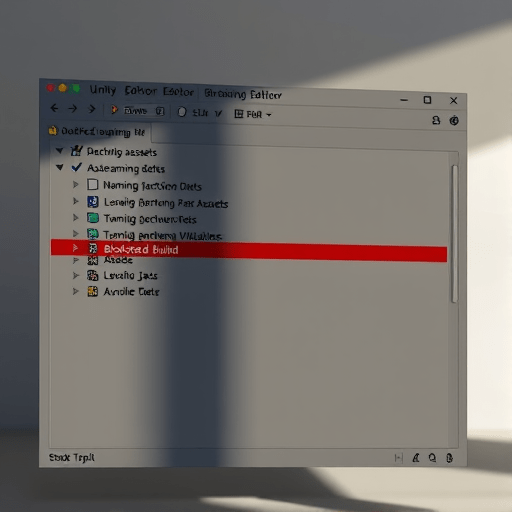
Implementing the interface is straightforward. In the OnPreprocessBuild method, call the validator. If any violation is found, throw a BuildFailedException. This cancels the build and prints a clear explanation of which assets need attention.
public class NamingBuildValidator : IPreprocessBuildWithReport
{
    public int callbackOrder = 0;

    public void OnPreprocessBuild(BuildReport report)
    {
        var violations = AssetNamingValidator.ValidateAllAssets();
        if (violations.Count > 0)
        {
            string message = $"Build blocked: {violations.Count} asset naming violation(s).";
            foreach (var v in violations)
            {
                message += $"\n{v.Path}: {v.Message}";
            }
            throw new BuildFailedException(message);
        }
    }
}
This approach is intentionally strict. Some teams prefer to fail only on naming violations that are marked as “breaking” in the settings, while leaving other rules as warnings. That flexibility can be built into the ScriptableObject by adding a severity field. The build gate then checks only for rules with severity equal to Error.
One important detail is to make the validator fast enough for CI. If the project has tens of thousands of assets, a regex-based scan over every path can be slow. To keep the build pipeline responsive, consider caching the file list and only re-validating assets that have changed since the last validation. Unity’s AssetPostprocessor can help by marking an asset as dirty when it is imported.
Going Further: Team Alerts and Auto-Fix Suggestions
Once the validator is blocking bad names from the build, the next step is to help teammates fix those names without friction. The Editor window can include an “Auto-rename” button that applies the suggested compliant name and uses AssetDatabase.RenameAsset to update references. This should be an explicit action, not an automatic one, because renaming can have workflow implications.
Another useful extension is a Git hook or a pre-commit check that runs the same validator locally. While the Editor script is the primary tool, a command-line version can run in CI after a merge request is created. This catches problems before they trigger a full build block, reducing the back-and-forth between developer and build server.
Teams that use Addressables can also integrate the validator with their addressable group naming. For example, a rule might require that every addressable asset’s address match its file name, which prevents the common mistake of changing an address without updating the asset name. The same pattern extends to Naming conventions for scene assets, shader files, and animation clips.
Conclusion
A custom automated asset naming validator for Unity teams is more than a convenience; it is a systematic way to protect the project from hidden maintenance costs. By moving validation earlier, combining a data-driven rule set with Editor tooling, and blocking non-compliant assets at the build gate, teams can keep naming conventions consistent without constant manual review. The script does not need to be complex to be effective. Start with a few high-value rules, run the validator on an existing project, and let the backlog of violations guide the next iteration. Over time, the validator becomes a quiet, essential part of the pipeline that no one wants to build without.