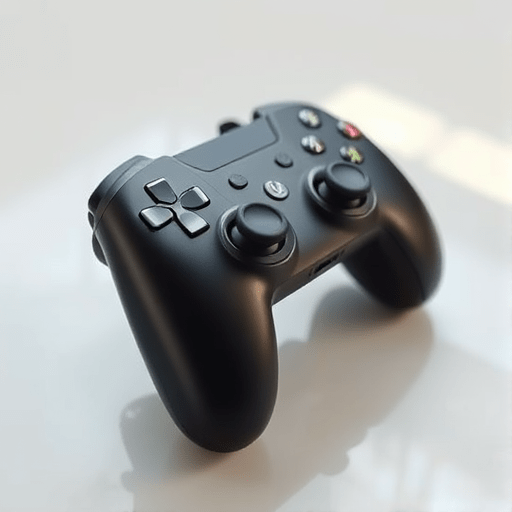
When playing with an adaptive controller that’s been set up for left‑handed use, the default button layout can still feel awkward. Custom Button Mapping for Left-Handed Adaptive Controllers lets you tailor every input—remapping buttons, fine‑tuning trigger sensitivity, and even creating macros—to match your personal playstyle and ergonomic preferences. In this guide we’ll walk through the most effective strategies for 2026, covering firmware updates, software tools, and accessibility best practices.
1. Understanding Your Hardware Foundation
Most left‑handed adaptive setups begin with a standard console controller or a hybrid device like the Xbox Adaptive Controller (XAC). The XAC’s modular design lets you attach a variety of switches, buttons, and joysticks, but the firmware that interprets those inputs is often generic.
Before diving into remapping, make sure your controller’s firmware is up to date. Manufacturers release patches that improve button response times and add new features—especially for accessibility. For the XAC, Microsoft’s Accessibility Center offers firmware updates that include native macro support.
Trigger Sensitivity Adjustments
- Analog vs. Digital Triggers: Many left‑handed controllers use digital triggers for simplicity, but analog triggers can provide smoother acceleration curves.
- Software Calibration: Use the controller’s built‑in calibration tool to set dead zones and peak sensitivity, ensuring that light taps don’t register unintentionally.
- Custom Profiles: Save multiple trigger profiles (e.g., “Hard‑Push” for racing games, “Soft‑Push” for shooters) and switch between them with a single button press.
2. Choosing the Right Software Tool
While the XAC offers basic remapping in its native interface, third‑party software opens up advanced options. Here are the top 2026 choices for customizing left‑handed inputs:
Open-Source Solution: JoyToKey
JoyToKey translates gamepad inputs into keyboard or mouse actions. It’s lightweight, supports macro creation, and can handle multiple profiles.
- Set Button Remapping by assigning each physical button to a virtual key.
- Use the Profile Manager to load different mappings for different game genres.
- Macros can be scripted directly within JoyToKey’s “Keyboard/Mouse” tab.
Commercial Software: AntiMicroX
AntiMicroX is the successor to the original AntiMicro and offers a polished UI for remapping and macro creation. It’s ideal for left‑handed users because it supports right‑handed layout mirroring—a built‑in feature that flips all controls across the Y‑axis.
Built‑In Console Utilities
- Xbox Accessories App (Windows 10+): Lets you rename buttons, create simple macros, and adjust vibration settings.
- PlayStation 5 DualSense Configuration: Includes a “Button Layout” editor that supports left‑handed presets.
- These apps often provide firmware update capabilities as well.
3. Mapping Buttons for Ergonomic Flow
Ergonomic flow is all about placing high‑frequency actions within arm’s reach while minimizing strain. Here’s a practical layout for a left‑handed gamer using an XAC or similar controller:
| Function | Preferred Button |
|---|---|
| Jump / Fire | Top‑Right Trigger (or mapped to “Space”) |
| Move Forward / Left | Primary Joystick Left (or “W”) |
| Move Backward / Right | Primary Joystick Right (or “S”) |
| Crouch / Sprint | Bottom‑Left Trigger (or “Ctrl”) |
| Open Inventory / Map | Top‑Left Button (or “I”) |
| Menu / Pause | Bottom‑Right Button (or “Esc”) |
| Custom Macro 1 | Middle Button (or “Alt + F1”) |
| Custom Macro 2 | Middle Button (or “Alt + F2”) |
Feel free to swap any of these assignments based on personal comfort. The key is to keep critical actions within a thumb’s reach and less frequent actions on the opposite side.
Macro Creation Workflow
- Identify the Action Sequence: For example, a “dash‑attack” might require pressing “Jump”, “Crouch”, then “Fire” in quick succession.
- Record the Sequence: In JoyToKey or AntiMicroX, use the macro recorder to capture the exact timing.
- Trim and Fine‑Tune: Remove unnecessary delays; adjust repeat intervals to suit the game’s physics.
- Assign to a Button: Bind the finished macro to a dedicated button or a combination of keys.
- Test in-game: Verify that the macro behaves as expected across different scenarios (e.g., enemy hit detection, resource usage).
4. Advanced Accessibility Features
Beyond simple remapping, modern controllers allow deeper accessibility integrations:
Adaptive Trigger Pressure
Some controllers support pressure‑sensitive triggers that can be programmatically adjusted to create “soft” or “hard” pushes. Use the controller’s SDK to expose a SetTriggerProfile API that lets you change dead zones and peak output on the fly.
Visual Feedback Enhancements
- Enable LED indicators for each button to provide immediate visual confirmation of input states.
- Configure high‑contrast button colors for better visibility in low‑light conditions.
Voice Control Integration
Pair your controller with voice assistants like Google Assistant or Amazon Alexa. Map voice commands (“Jump”, “Reload”) to controller inputs using an intermediary service such as IFTTT or Node-RED. This adds an extra layer of accessibility for users with limited dexterity.
5. Troubleshooting Common Issues
- Button Lag: Ensure firmware is current and that no conflicting background applications are hijacking inputs.
- Trigger Drift: Perform a mechanical reset; if the issue persists, consider replacing the trigger module.
- Macro Not Triggering: Verify that the macro’s key sequence doesn’t conflict with in‑game shortcuts; adjust timing if necessary.
- Ergonomic Fatigue: Rotate button assignments periodically to prevent repetitive strain injuries.
6. Future Trends: AI‑Powered Personalization
2026 sees the rise of AI-driven controller mapping. By logging your in‑game performance, an AI can suggest optimal button placements and macro scripts tailored to your playstyle. Look out for upcoming tools that integrate machine learning models directly into the controller’s firmware—this will further reduce setup time and improve ergonomic comfort.
Conclusion
Custom button mapping for left‑handed adaptive controllers transforms a standard gaming rig into a personalized experience that feels natural and responsive. By keeping firmware updated, leveraging third‑party remapping software, and thoughtfully configuring triggers, macros, and accessibility features, left‑handed gamers can enjoy smoother, more immersive gameplay. The process is iterative, so don’t hesitate to experiment with different layouts and adjust as your comfort evolves over time. Happy gaming!