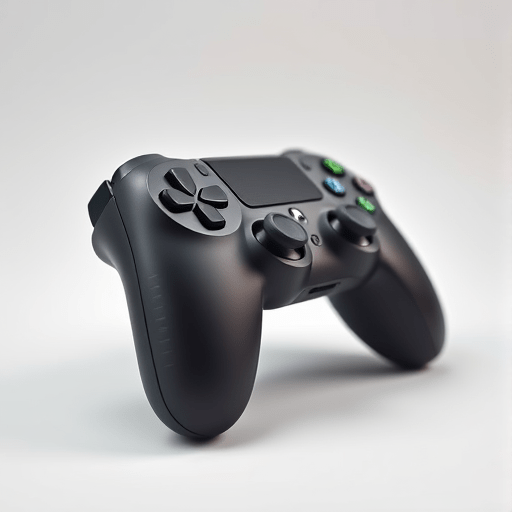
As gaming expands into new worlds, ensuring that every player can fully immerse themselves has become a top priority. For visually impaired gamers, the core of that immersion lies in the controller and its interface. Game Controllers for the Visually Impaired: 7 Essential Design Tips offers a concise, actionable guide that designers and developers can use to create truly inclusive experiences. These strategies go beyond the usual high‑contrast visual cues, addressing tactile feedback, audio prompts, and ergonomic considerations to empower blind players to navigate games with confidence.
1. Prioritize Tactile Differentiation in Button Layouts
Blind gamers rely on tactile sensation to identify controls quickly. Even a slight variation in shape or texture can make a difference between a smooth gaming session and a frustrating one.
- Use raised textures: Incorporate embossed bumps or ridges on each button, ensuring they are distinct even when pressed together.
- Vary button sizes: Larger buttons for primary actions and smaller ones for secondary functions help players locate controls by feel.
- Maintain consistent spacing: Evenly spaced buttons prevent accidental presses, which is critical for fast-paced games.
Implementing a tactile grid also benefits players who are partially sighted, providing a fallback in low‑light conditions. This simple approach aligns with the latest WCAG 2.1 guidelines for tactile interfaces.
Quick Check:
- Are all buttons textured differently? ✅
- Is there a clear hierarchy of button sizes? ✅
- Do the buttons maintain a consistent, ergonomic spacing? ✅
2. Integrate Multimodal Audio Prompts
Audio cues complement tactile feedback by offering contextual information. A well‑designed audio system can convey game status, button states, and environmental changes without requiring visual confirmation.
- Dynamic sound icons: Assign unique sound tones to each button (e.g., a deep hum for the “Jump” button, a sharp click for “Shoot”).
- Spatial audio cues: Use binaural audio to indicate in‑game events relative to the player’s position, enhancing situational awareness.
- Voice‑over narrations: Provide real‑time narration for menus, HUD elements, and critical gameplay actions.
When designing audio prompts, keep volume levels balanced. Too loud can be disorienting; too soft may be missed. A simple volume slider within the controller’s firmware allows users to personalize settings.
Quick Check:
- Do all primary buttons have distinct audio cues? ✅
- Is spatial audio implemented for environmental awareness? ✅
- Is there an adjustable volume control? ✅
3. Optimize Haptic Feedback for Game States
Haptic feedback goes beyond vibration. By mapping different haptic patterns to game events, players receive immediate, non‑visual information.
- Pattern variety: Short taps for minor alerts, long pulses for major events, and pulsating rhythms for ongoing actions.
- Intensity modulation: Adjust vibration strength to reflect damage levels, distance to enemies, or incoming projectiles.
- Timing precision: Synchronize haptic cues with audio and visual events for a cohesive experience.
Developers should provide a haptic customization panel, enabling players to mute or tailor feedback to their preferences, which is essential for accessibility and comfort.
Quick Check:
- Are haptic patterns distinct for each event type? ✅
- Can intensity be adjusted or muted? ✅
- Is haptic feedback synchronized with audio cues? ✅
4. Design Ergonomic Button Groupings for Hand Positioning
Ergonomics significantly affect gameplay longevity and precision. For visually impaired gamers, intuitive hand placement reduces cognitive load.
- Clustered zones: Group related functions (movement, actions, modifiers) within easy reach.
- Grip‑friendly surfaces: Add non‑slip materials (e.g., silicone grips) to prevent accidental dropping during intense play.
- Customizable layouts: Offer remappable button positions through firmware updates.
Testing with actual users helps refine the layout. Conduct blind playtests to observe hand movements and adjust the design accordingly.
Quick Check:
- Are related functions in adjacent clusters? ✅
- Is the controller surface grip‑friendly? ✅
- Can button positions be remapped? ✅
5. Implement Clear Voice Command Integration
Voice control provides an additional, non‑visual interaction layer. Modern microphones and speech‑recognition engines allow players to issue commands effortlessly.
- Predefined command sets: Map common actions (e.g., “attack,” “pause,” “jump”) to concise voice triggers.
- Custom command mapping: Let users define unique phrases for personal convenience.
- Quiet mode: Include a mute button to prevent accidental voice triggers during non‑gaming contexts.
Voice integration also benefits players with motor impairments, offering an inclusive experience across a broader spectrum of abilities.
Quick Check:
- Is a default set of voice commands available? ✅
- Can users customize voice phrases? ✅
- Is there a mute or quiet mode? ✅
6. Offer Comprehensive On‑Device Calibration Settings
Calibration ensures that every button responds accurately, which is crucial for precise gameplay.
- One‑touch calibration: A simple button press initiates an auto‑calibration routine.
- Manual fine‑tuning: Allow users to adjust sensitivity for analog sticks and triggers via a tactile menu.
- State feedback: Provide audible confirmation when calibration is complete.
Accessible calibration reduces frustration, especially for blind gamers who cannot verify visual feedback on a screen.
Quick Check:
- Is calibration accessible via a single button? ✅
- Can sensitivity be manually adjusted? ✅
- Does the controller provide audio confirmation upon calibration? ✅
7. Provide Robust Firmware Update Mechanisms
Ongoing support keeps the controller current with evolving accessibility standards and user feedback.
- Wireless firmware updates: Enable seamless OTA (over‑the‑air) updates without requiring a computer.
- Version transparency: Announce new features via audio prompts and text-to-speech notifications.
- Rollback options: Offer the ability to revert to previous firmware if an update introduces issues.
Including an update log and change notes in an accessible format ensures that users are fully informed about improvements and changes.
Quick Check:
- Can firmware be updated wirelessly? ✅
- Is there an audio notification for new updates? ✅
- Can users roll back to a previous firmware version? ✅
Putting It All Together: A Unified Accessibility Blueprint
While each of the seven design tips addresses a specific aspect of controller accessibility, the real impact emerges when they work in concert. An accessible controller becomes a bridge that translates the game’s world into a tactile, auditory, and ergonomic language that blind gamers can navigate effortlessly.
By embedding these design principles early in the development cycle, designers and developers can create controllers that not only meet current accessibility standards but also anticipate future innovations in assistive technology. As games continue to push the boundaries of storytelling and interactivity, ensuring that every player—regardless of visual ability—has an equal chance to engage is not just a best practice; it is a responsibility.
In summary, the path to truly inclusive gaming controllers lies in thoughtful tactile design, dynamic audio and haptic cues, ergonomic ergonomics, voice command flexibility, precise calibration, and reliable firmware support. Armed with this checklist, creators can develop controllers that unlock the full potential of gaming for visually impaired players, making every quest, battle, and discovery feel genuinely theirs.