
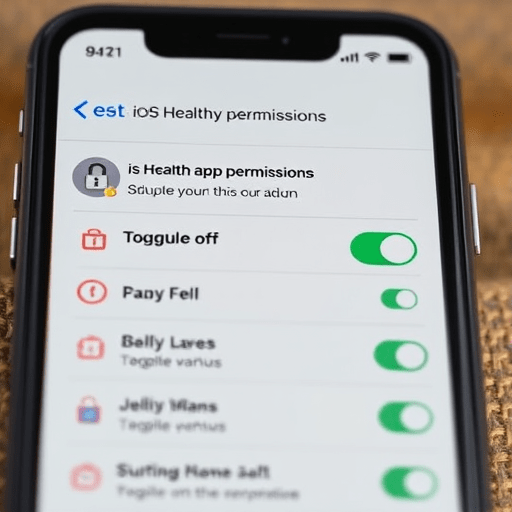
Your health apps know more about you than your doctor does—and probably more than your partner, too. Step count, sleep quality, heart rate, menstrual cycle, blood pressure, even medication reminders all live inside your phone. But while you carefully guard your banking apps and social media accounts, health app permissions often sit untouched for years, silently granting access to third-party trackers, fitness platforms, and often forgotten integrations. That is why learning to revoke health app permissions is one of the most underrated digital hygiene tasks of the year. In this short audit, you’ll walk through iOS and Android settings, clear out years of accumulated permissions, and take back control of your most intimate personal data—all in about five minutes.
Why Health App Permissions Have Become a Data Privacy Minefield
In 2026, the convenience of syncing wearables, nutrition logs, and symptom trackers has created a silent web of data sharing. Each app you’ve ever opened and granted permission to—whether it was a free calorie counter, a sleep aid, or a telehealth portal—can maintain a connection to sensitive health data long after you stop using it. Recent research has highlighted how third-party SDKs inside popular health apps collect and transmit user information to advertising and analytics firms. Even if you haven’t opened a fitness app in months, it may still be reading your step count, workout location, or heart rate variability from your phone’s sensors.
The problem is compounded by the “set it and forget it” mentality. Many people grant permissions during an initial app setup, then never revisit them. That’s why a quick, focused audit—specifically aimed at health-related access—can be more impactful than clearing your browser cookie jar. And the best part? You don’t need a PhD in privacy law or coding skills. On both Android and iOS, the controls are surprisingly accessible.
What Your Health Permissions Actually Expose
Understanding what’s at stake makes the audit feel less like a chore and more like a power move. Health app permissions typically include access to:
- Motion & fitness data: steps, stairs, exercise type, distance, and sometimes raw accelerometer data.
- Health records: anything you’ve manually entered or synced, such as lab results, medications, and procedures.
- Heart metrics: resting heart rate, heart rate variability, ECG traces, and irregular rhythm notifications.
- Body measurements: weight, height, BMI, and body fat percentage.
- Sleep analysis: times, duration, and stages, which can also reveal patterns related to mental health or illness.
- Reproductive health data: cycle tracking, fertility windows, and related symptoms.
When you see that list, the level of intimacy becomes clear. This is not just another type of browsing history—it’s your physical, biological, and sometimes emotional baseline. Revoking unused or suspicious permissions should be as routine as changing your password.
Step-by-Step: The 5-Minute Health Permission Audit on iOS
Apple offers granular control over health data, but it can feel buried in settings. Here is the fastest path to auditing and revoking access.
1. Open Health App Permissions
Head to Settings > Privacy & Security > Health. This screen shows every app that has requested access to your health data. Tap Manage to see all apps with past or current access. You’ll find two sections: “Allow to read and write” and “Previous access.” The second one is particularly valuable—it lists apps you may have deleted or stopped using but that still hold historical data access.
2. Toggle Off the Apps You Don’t Use
For any app you don’t recognize, no longer use, or simply don’t trust, toggle off both “Read” and “Write” permissions. If you want to keep an app functional but limit its data, you can also go into each individual app under the same menu and choose specific data types. For example, a food tracking app might need your weight but not your heart rate.
3. Check Motion & Fitness and Bluetooth
Health permissions also extend to Settings > Privacy & Security > Motion & Fitness. Here you’ll see which apps can access your step count and fitness tracking. Disable any app that doesn’t need that data. Then, check Bluetooth under the same Privacy & Security menu—many health devices connect via Bluetooth, but after they’re paired, they might continue to scan or exchange data. Remove any device or app that is no longer in use.
Step-by-Step: The 5-Minute Health Permission Audit on Android
Android’s permission system is a bit more fragmented because different manufacturers tweak the settings UI, but the core steps remain consistent. Here’s what to do on stock Android (Go to Settings > Privacy). If you have Samsung, Pixel, or other overlays, search for “permission manager” in Settings.
1. Use the App Permission Manager
Go to Settings > Privacy > Permission Manager. This page lists all permission types—body sensors, physical activity, health, and others. Tap Physical activity and Body sensors (the names may vary by version) to see which apps can read your step count, movement, or heart rate. For each app that doesn’t need that capability, tap the app and select Don’t allow.
2. Review “Health Connect” and Google Fit
On Android, many health apps sync through Health Connect, a central hub. Open Settings > Apps > See all apps > Health Connect (or find it in the app drawer). Inside Health Connect, tap App permissions and check which apps are connected and what data they can read and write. Revoke access for anything you don’t recognize or no longer use. Also check Google Fit—tap its profile icon, then Settings, and review “Connected apps.” Remove any stale connections.
3. Look for Hidden Permissions in Installed Apps
Some health apps hide their sensor requests inside “Advanced” or “All permissions.” Install a third-party app? No need—you can simply go to Settings > Apps, select the specific app, tap Permissions, and inspect each toggle. Pay special attention to “Nearby devices” and “Bluetooth” permissions, which can be used for background beacon scanning unrelated to health.
Beyond Permissions: Investigating Connected Apps and SDKs
The permission audit only goes so far. A health app may not have direct access to your phone’s sensors, but it can still receive data from another app you have authorized. This is the “connected app” problem. For instance, a fitness tracker app might share your step count with a third-party challenge app or a nutrition service. Both iOS and Android let you see these connections, but they aren’t always obvious.
On iOS, open the Health app, tap your profile picture, then Privacy > Apps and Services. Look for any connected services that you don’t remember adding. On Android, go to Settings > Passwords & accounts > Third-party access (or Google Account > Security > Third-party access) to review all apps with two-way data exchange. This is also a great time to check if any app you’ve never used has access to your Google Fit data. If in doubt, revoke.
Building a Sustainable Permission Habit
A single audit is excellent, but health permissions accumulate with every new app you try. To avoid another five-minute sweep in a year, adopt a simple habit: when you delete a health app, immediately revoke its permissions. Also, set a monthly or quarterly reminder to check your “previous access” list on iOS and the permission manager on Android—just like you’d back up your camera roll.
Another smart practice is to deny permissions by default for any new health app. You can always enable them later if the app’s core feature truly requires the data. Many reputable apps will still work with limited access, and you’ll be surprised how much you can use without handing over your heart rate, location, and sleep schedule all at once.
Finally, consider whether you actually need all of your health apps. If you have five different sleep trackers and two fitness logging apps, the data is likely redundant and the permissions multiplied. Deleting the ones you don’t use—and then cleaning up their leftover permissions—is the most effective privacy move you can make.
Your Health Data, Your Rules
The idea that health data is too complicated to manage is outdated. With the methods above, you can revoke health app permissions on both Android and iOS in the time it takes to brew a cup of tea. The goal is not to block all health tracking—that would be unrealistic and often unhelpful. Instead, it’s about being deliberate. By auditing your permissions, you reduce the risk of your biometric and lifestyle data drifting into unknown hands, and you regain the right to decide who gets to see a very intimate picture of your life.