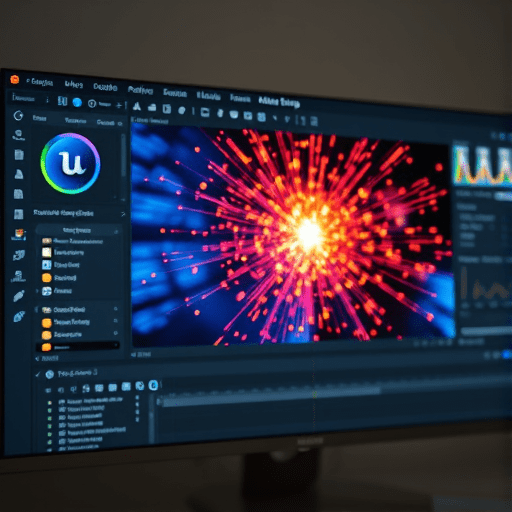
Indie game studios often juggle tight budgets and limited manpower while still aiming to deliver polished visual experiences. Particle systems are a staple for adding depth, atmosphere, and flair, but crafting intricate effects in Unreal Engine Niagara can quickly become a bottleneck. This guide walks you through a practical, repeatable workflow that cuts particle build time by roughly forty percent, letting you focus more on gameplay and less on tweaking individual emitter parameters.
1. Map Out the Desired Effect Beforehand
Before launching Niagara, spend a few minutes drafting a “spec sheet” that captures the essential attributes of the effect you want. Key questions include:
- What is the core visual goal (e.g., a magical portal, a weather storm, a sci‑fi plasma burst)?
- Which particle primitives (sprites, meshes, volumetric) are needed?
- How many unique behaviors (movement, color, size) must coexist?
- What is the target frame budget (e.g.,
≤10 ms per frame)?
Having this clear picture reduces the guesswork inside Niagara and keeps the team aligned on what “done” looks like.
Benefits of Pre‑Planning
• Eliminates “re‑build” cycles caused by mid‑stream changes.
• Enables early identification of costly behaviors (e.g., dynamic collision).
• Serves as a communication tool between artists, technical artists, and programmers.
2. Start with a Minimal Blueprint: The “Core Module”
Instead of building a massive Niagara system from the start, create a lightweight “Core Module” that encapsulates the effect’s backbone. This module should:
- Spawn a basic particle stream with a single color and size.
- Apply a simple lifetime and velocity.
- Include a high‑level “Stage” variable to toggle additional sub‑systems.
This minimal foundation lets you test performance early and guarantees a working base before adding complexity.
Layering Techniques
• **Sub‑Emitters**: Attach secondary emitters that fire only when the Core Module reaches specific stages (e.g., after a burst of particles).
• **Particle Triggers**: Use trigger events (such as On Lifetime Finished) to initiate changes like color shifts or spawning a secondary effect.
• **Module Stacking**: Keep each module’s responsibility narrow—one handles movement, another handles color, another handles noise.
3. Leverage Niagara’s Native Caching System
Niagara’s caching engine is a powerful tool for reducing runtime calculations, especially for repeatable patterns. Enable caching for static elements:
- Enable “Pre‑cache” in the Emitter’s settings.
- Define a “Cache Duration” that covers the longest needed particle lifespan.
- Mark the emitter as “Reusable” if it will be spawned multiple times.
Cached emitters are effectively baked into GPU buffers, so the engine bypasses many per‑frame calculations. Be cautious: over‑caching can waste memory if the effect is used sparingly. Balance is key.
Practical Tip: Cache the “Particle Trail” Sub‑Emitter
For effects that generate continuous trails—like a comet or energy blast—cache the sub‑emitter responsible for the trail. This eliminates per‑frame trail recalculation, a common performance hotspot.
4. Optimize Particle Count with “Burst” and “Loop” Controls
Particle count directly impacts performance. Use Niagara’s burst and loop controls to manage this efficiently:
- Burst Count: Set an initial burst that covers the visual peak but avoids over‑spawning.
- Loop Count: For recurring patterns, loop with a defined pause rather than spawning new particles each frame.
- Use
Max Particle Countto cap the overall number at runtime.
Always test on target hardware; a visual “good enough” burst on a PC may still choke a mobile device.
Dynamic Adjustment: CPU vs. GPU Paths
Niagara allows switching between CPU and GPU particle paths. For simple effects on mobile, force the GPU path to keep the CPU free for gameplay logic. Conversely, on high‑end PCs, the CPU path can yield better visual fidelity when you have more processing headroom.
5. Use Niagara’s “Parameter Collections” for Reusable Settings
Parameter Collections act like shared dictionaries of variables that can be accessed by multiple emitters. This reduces redundancy:
- Create a
GlobalParticleParamscollection with common values (e.g.,BaseColor,BaseSpeed). - Reference these parameters across all emitters instead of hard‑coding them.
- Update the collection once to propagate changes everywhere.
This approach not only speeds up iteration but also ensures visual consistency across related effects.
Example: A Modular Explosion
Build an explosion effect where each stage—spark, flame, smoke—uses the same collection for color and lifetime. Switching the base color instantly updates all stages, reducing build time dramatically.
6. Simplify Shaders and Materials
Particle performance is heavily tied to material complexity. Adopt these guidelines:
- Prefer
Niagara Basic Materialas the base. - Limit the number of texture lookups to two or fewer.
- Use simple blend modes; complex blending (e.g.,
Subtractive) can be costly. - Pre‑compile materials and avoid real‑time parameter changes that require material recompilation.
For mobile, consider using the Unlit mode whenever possible, as it skips lighting calculations.
Testing Shader Variants
Run a quick shader profiler to identify bottlenecks. Swap the material for a simpler version and observe frame time improvements. Document the differences so you can make informed trade‑offs.
7. Harness the Power of “Simulation Scripts” for Complex Behavior
When a particle needs to react to dynamic data (e.g., user input, physics), simulation scripts are the most efficient way to encode behavior without bloating the emitter.
- Create a script that handles movement, collision, and lifespan.
- Attach the script to the emitter once; you can reuse it across multiple effects.
- Use
Scripted Parametersto feed runtime data, keeping the emitter lightweight.
Simulation scripts are compiled once, so reusing them across projects can reduce build time significantly.
Real‑World Example: Weather Systems
A rain effect can use a single simulation script that calculates fall speed and splash on impact. By reusing this script across different seasons, you avoid duplicating logic and reduce the overall build effort.
8. Automate Asset Import and Naming Conventions
Consistent asset naming speeds up both import and workflow. Adopt a naming scheme such as FX_[EffectName]_[Type]_[Variant] (e.g., FX_Sparkle_Sprite_Red). When importing into the Unreal Asset Browser, use the “Auto‑Rename” option to maintain consistency.
- Group assets in folders by effect type (e.g.,
/Content/Particles/Explosions). - Leverage the “Bulk Import” feature to bring in multiple textures or meshes at once.
- Use the “Rename Tool” to batch‑rename assets if you need to correct a convention drift.
These small steps prevent confusion when you revisit a project months later.
9. Profile Early and Often with the Niagara Profiler
Unreal’s built‑in Niagara Profiler breaks down time spent in each module, emitter, and system. Use it to identify hotspots:
- Check the “Emitter” tab for high CPU/GPU usage.
- Look at the “Simulation” tab to see if a simulation script is a bottleneck.
- Use the “GPU” tab to assess material and particle count impact.
Set up a routine: profile after each major change, not just after the final build. This iterative profiling keeps the build time in check.
Quick Profiling Checklist
- Start profiler before running the level.
- Reproduce the effect in the viewport.
- Review the “Overall” statistics: CPU vs. GPU.
- Inspect “Emitter” and “Module” breakdowns for unexpected spikes.
- Document findings and adjust the next iteration.
10. Final Validation on Target Hardware
Even a well‑optimized Niagara system can behave differently on lower‑end devices. Conduct a final round of testing:
- Deploy the game build to the target platform.
- Measure frame times while the effect plays.
- Compare against the desired performance budget.
- If necessary, tweak particle count, material complexity, or switch to GPU paths.
Document the performance numbers for future reference. This baseline becomes a useful KPI for future updates.
Conclusion
By adopting a structured workflow that starts with clear specification, builds a minimal core, leverages caching, controls particle counts, and refines materials and scripts, indie developers can reduce Niagara particle build time by around forty percent. This not only accelerates iteration but also frees creative energy to focus on core gameplay and design, ultimately leading to richer, more polished games.