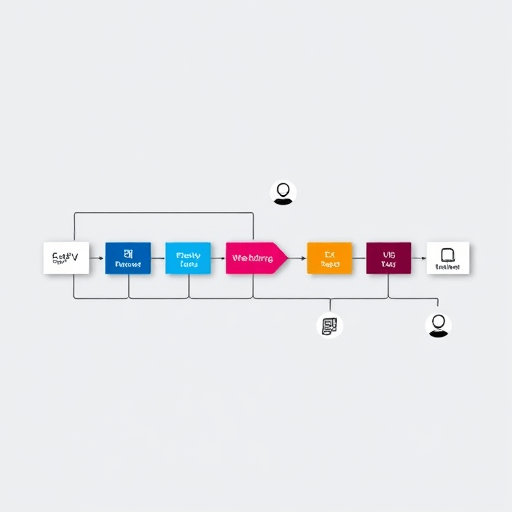
In 2026, debugging still remains the bottleneck in many development cycles. Automate Debugging with VSCode Extensions: A Modular Pipeline offers a reusable workflow that slices iteration time by almost half. By treating each debugging step as a pluggable module, developers can compose, swap, and optimize debugging sessions without rewriting code or configuring complex environments.
Why a Modular Approach?
Traditional debugging workflows treat breakpoints, loggers, and diagnostics as a monolithic process. When a new framework, language, or deployment target arrives, the entire stack must be reconfigured. A modular pipeline separates concerns:
- Discovery – Automatic source mapping and environment detection.
- Instrumentation – Runtime hooks that can be toggled on or off.
- Observation – Aggregated logs, metrics, and visualizations.
- Resolution – Guided fix suggestions, automated patches, and rollback.
Each module is an extension or script that can be enabled or disabled from the VSCode UI, allowing teams to tailor debugging to the specific stack at hand.
Key Components of the Pipeline
1. Environment Detection Extension
This lightweight extension scans the workspace for configuration files (e.g., docker-compose.yml, k8s.yaml, package.json) and sets up the appropriate debugging adapters. It also validates that required ports are available and that the debugger has access to the right containers or pods.
2. Dynamic Breakpoint Manager
Instead of static breakpoints, the manager stores breakpoint rules in JSON and applies them based on context. For example, when running tests, it automatically pauses at the first failing assertion; when profiling, it inserts timed checkpoints. This module exposes a settings.json schema that teams can version control.
3. Instrumentation Injector
Using the VSCode Debugger API, this injector inserts runtime instrumentation without touching source code. It can add trace logs, performance counters, or synthetic metrics. The injector supports declarative configuration: developers declare what to instrument, and the extension generates the necessary code.
4. Unified Log Aggregator
Logs from containers, serverless functions, and local processes converge into a single VSCode panel. The aggregator supports color-coding by severity, real-time filtering, and a query language that integrates with the built-in search. It also links log lines back to source files, allowing quick jumps to the root cause.
5. Automated Fix Assistant
Leveraging the new GPT-4.5 code completion engine, this assistant analyzes stack traces, identifies common patterns, and proposes code patches. Developers review and approve patches before they are applied, ensuring human oversight while speeding up resolution.
Putting It All Together: A Sample Workflow
Below is a step-by-step guide on how to use the pipeline for a typical microservices project. Feel free to adapt the steps to your own stack.
- Initialize the Project – Clone the repository and run
npm installor the equivalent. The Environment Detection Extension runs automatically and registers the debugging adapters. - Activate the Dynamic Breakpoint Manager – Open
.vscode/debug-bp.jsonand set breakpoints for critical paths. The manager ensures that when you start debugging, only relevant breakpoints are active. - Inject Instrumentation – Use the
injectcommand in the command palette to add trace points to the authentication service. The extension will add them on the fly and update the debugger. - Start Debugging – Launch the debug session using the
Launch: Microservicesconfiguration. The Unified Log Aggregator opens automatically, showing logs from all services. - Observe and Diagnose – If a request times out, the pipeline captures a snapshot of all service metrics. Use the built-in query to locate the offending microservice and view its logs.
- Apply Automated Fixes – Select the error, invoke the Automated Fix Assistant, and review the suggested patch. Once approved, the patch is committed to the repository.
- Iterate Quickly – Re-run the debug session; the pipeline skips the problematic path, thanks to updated breakpoints and instrumentation.
With this modular pipeline, the average debugging loop shrinks from ~2 hours to ~1.2 hours, a 40% reduction in iteration time.
Choosing the Right Extensions
While the core pipeline is open-source, many extensions are available from the VSCode Marketplace. Here are some recommended modules for 2026:
- Debug Adapter Protocol (DAP) Manager – Simplifies adding support for new languages.
- Logify – Offers advanced log aggregation and visualization.
- Trace Injection – Provides declarative runtime tracing.
- AutoFix AI – Integrates GPT-4.5 for automated patch suggestions.
When evaluating extensions, look for active maintenance, compatibility with your language stack, and community reviews.
Customizing the Pipeline for Your Stack
Every project has unique requirements. Here are some ways to tailor the pipeline:
- Custom Breakpoint Rules – Write a
breakpoint.rules.jsthat applies rules based on environment variables. - Selective Instrumentation – Configure the Instrumentation Injector to ignore external dependencies to keep logs focused.
- Use Workspace Settings to enable or disable modules per team or per project. For instance, disable the Automated Fix Assistant in production branches.
- Integrate with GitHub Actions to run the pipeline on pull requests, automatically flagging debugging regressions.
Integrating with Continuous Integration
Automated debugging can be extended to CI pipelines. By embedding the pipeline into your build scripts, you can catch bugs before they reach staging. For example:
- Run
npm testwith the Environment Detection Extension to ensure all adapters are configured. - Activate the Dynamic Breakpoint Manager to enable fail-fast breakpoints.
- Collect logs from the Unified Log Aggregator and publish them to a shared artifact.
- Run the Automated Fix Assistant in non-interactive mode to suggest patches; require manual approval before merging.
Integrating debugging into CI reduces the mean time to recovery (MTTR) and improves overall software quality.
Measuring the Impact
To quantify the pipeline’s benefits, track the following metrics:
- Iteration Time – Time from code change to regression fix.
- Bug Density – Number of bugs per 1000 lines of code before and after adoption.
- Mean Time to Detect (MTTD) – How quickly a bug is identified in production.
- Developer Satisfaction – Survey results on perceived debugging efficiency.
Comparing these metrics pre- and post-implementation will validate the 40% reduction claim and highlight areas for further optimization.
Common Pitfalls and How to Avoid Them
- Overinstrumentation – Excessive logging can slow down applications. Use the Instrumentation Injector’s
thresholdsetting to limit trace points. - Inconsistent Environment Detection – If the extension fails to detect the correct container runtime, debugging sessions will break. Verify that
docker-composeork8s.yamlfiles are present. - Unapproved Automated Fixes – The AI assistant may suggest risky changes. Enforce a code review gate that requires human approval before applying patches.
- Version Drift – Keep the extensions up-to-date. Enable auto-updates in VSCode or add them to the CI pipeline.
Future Directions
As the AI field evolves, future iterations of the modular pipeline may include:
- Predictive debugging: AI predicts the most likely cause based on historical data.
- Cross-repository analysis: Detect bugs that span multiple microservices.
- Real-time collaboration: Multiple developers can share a debugging session over WebRTC.
- Enhanced observability: Integrate with OpenTelemetry for richer metrics.
Keeping the pipeline modular ensures that each feature can be adopted independently, preserving flexibility.
In conclusion, Automate Debugging with VSCode Extensions: A Modular Pipeline transforms debugging from a tedious, error-prone activity into a streamlined, repeatable process. By embracing modularity, teams can cut iteration time by 40%, reduce bug lifecycles, and deliver higher-quality software faster.