
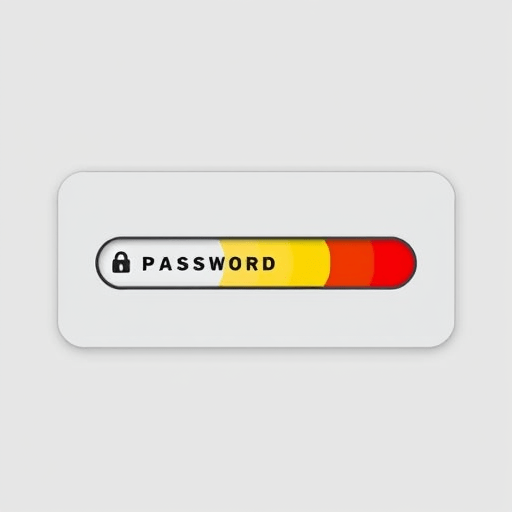
Building your own password strength checker in HTML CSS JavaScript is one of the most practical ways to understand how front-end validation works. Instead of waiting for a form submit to show an error, you can give users live feedback as they type by combining regular expressions with the browser’s input event. In this guide, you’ll create a real-time validation component from scratch—no frameworks, no libraries—and you’ll also learn why the old rule of “include one uppercase letter, one number, and one symbol” no longer represents genuine password strength in 2026.
Why Traditional Password Rules Are Not Enough
For years, websites forced long combinations of uppercase letters, lowercase letters, digits, and symbols. Users responded by creating patterns like Password1!, which are easy for attackers to guess. In contrast, modern password guidance from NIST encourages longer passphrases and checking passwords against known breach lists. A good strength checker should reward length, variety, and unpredictability—not just count character types. As you build the checker, you’ll see how a small scoring system can produce much smarter feedback than a simple “Pass/Fail” message.
HTML Structure: Build the Foundation for Your Checker
The first step is semantic, accessible HTML. You should use a label associated with the input, a live status region for assistive technology, and a visual bar for quick scanning. The aria-live attribute tells screen readers to announce changes when the password strength updates.
<div class="password-checker">
  <label for="password">Choose a password</label>
  <input type="password" id="password" name="password" autocomplete="new-password" aria-describedby="passwordFeedback">
  <p id="passwordFeedback" role="status" aria-live="polite"></p>
  <div class="strength-bar" aria-hidden="true">
    <span id="strengthFill"></span>
  </div>
</div>
The autocomplete="new-password" attribute prevents browser autofill from clashing with a user’s new password. The role="status" comment is an unobtrusive way to announce a current state, while the strength bar gives a visual anchor without overwhelming users who rely on screen readers.
CSS Styling: Make Password Strength Visible
Now that the HTML skeleton is in place, you can style the checker. A thin horizontal bar is common, but you can also use an animated gauge, segmented squares, or a pill-shaped meter. The key is to use colors that are commonly understood: red for weak, orange or yellow for medium, and green for strong.
.password-checker {
  max-width: 420px;
  font-family: system-ui, sans-serif;
}
.strength-bar {
  height: 10px;
  border-radius: 999px;
  background: #e5e7eb;
  overflow: hidden;
  margin-top: 0.5rem;
}
#strengthFill {
  display: block;
  height: 100%;
  width: 0%;
  background: currentColor;
  transition: width 0.2s ease, background-color 0.2s ease;
}
.weak { color: #dc2626; }
.fair { color: #d97706; }
.good { color: #ca8a04; }
.strong { color: #16a34a; }
Notice that the text color set on the container controls the bar color through currentColor. That trick keeps the CSS straightforward and reduces duplicated styles. You will toggle these classes later in JavaScript.
JavaScript Input Events: Listen While the User Types
Most beginner tutorials use keyup or keydown, but the correct event for live validation is input. The input event fires whenever the value changes, including when users paste, drag text, or use browser autofill. This makes your checker more robust and closer to a production-ready component.
const passwordInput = document.getElementById('password');
const feedbackElement = document.getElementById('passwordFeedback');
const strengthFill = document.getElementById('strengthFill');

passwordInput.addEventListener('input', () => {
  const password = passwordInput.value;
  const result = analyzePassword(password);
  renderFeedback(result, password.length);
});
Here, analyzePassword will return a score, a message, and a strength label. Keeping the analysis separate from the rendering makes the code easier to test and update later, especially if you decide to add breach-checking or extra password policies.
Regex Patterns That Actually Improve Strength Detection
Regular expression matching is at the core of this checker. You need a few focused patterns that identify presence of lowercase, uppercase, digits, and symbols. But you should also test for repetitions and common sequences. A regex like /(.)\1{2,}/ catches three identical characters in a row, while /(1234|abcd)/i is a naive guard against predictable strings.
const hasLower = /[a-z]/;
const hasUpper = /[A-Z]/;
const hasDigit = /\d/;
const hasSymbol = /[^A-Za-z0-9]/;
const hasRepeated = /(.)\1{2,}/;

function analyzePassword(password) {
  let score = 0;
  if (password.length >= 8) score++;
  if (password.length >= 12) score++;
  if (hasLower.test(password) && hasUpper.test(password)) score++;
  if (hasDigit.test(password)) score++;
  if (hasSymbol.test(password)) score++;
  if (hasRepeated.test(password)) score -= 1;
  return score;
}
This scoring model rewards length, mixed cases, digits, and symbols while penalizing repeated characters. The result is not perfect entropy calculation, but it offers a reasonable line between usability and security. If you want to go further, use a library to test the password against a list of the most common compromised passwords.
Turning the Score into Real-Time Feedback
Once the analysis returns a score, you need to render a meaningful message. A bare numeric score is unhelpful. Instead, categorize it into weak, fair, good, or strong, and explain why. Real-time feedback is about reducing the user’s cognitive burden, not adding more complex rules to their memory.
function getFeedback(score) {
  if (score <= 1) return { label: 'weak', text: 'Too predictable. Make it longer.' };
  if (score === 2) return { label: 'fair', text: 'Add more length and variety.' };
  if (score === 3) return { label: 'good', text: 'Solid, but avoid patterns.' };
  if (score >= 4) return { label: 'strong', text: 'This is a strong password.' };
}

function renderFeedback(result, length) {
  const { label, text } = getFeedback(result);
  feedbackElement.textContent = length === 0 ? '' : text;
  strengthFill.style.width = Math.min(result * 25, 100) + '%';
  strengthFill.parentElement.className = 'strength-bar ' + label;
}
This keeps the password strength checker manageable. Notice that the empty-password state is handled inside renderFeedback to avoid showing “weak” for a blank field. That small detail improves user experience significantly.
Real-World Enhancements for 2026 Passwords
Your checker is no longer a toy; it is designed for modern expectations. Consider adding a few practical refinements:
- Show a toggle to reveal the password while typing, so users can watch the meter work.
- Use a password manager style tip: “Use a sentence made of unrelated words” instead of “Add a random symbol.”
- Warn when a password contains the user’s name, email, or repeated patterns.
- Add a “Show common password warning” by loading a small list of known weak passwords via JSON—no server needed.
- Use CSS custom properties to support dark mode and enterprise branding.
Remember that front-end validation is only the first line of defense. Your server should also validate the password on submit, because someone can always remove your JavaScript and send raw requests. Even so, front-end feedback helps the people who want to use your site quickly and securely.
Test Edge Cases Before You Ship
If you publish this code, do not forget edge cases. Test an empty password, a single space, a long string with only one letter type, and the most common password: 123456. You should also check what happens when your JavaScript fails; the page should still be usable, even if the weak/strong labels are absent. Add a hidden fallback validation requirement in the HTML pattern attribute as a progressive enhancement.
As you build your own password strength checker in HTML CSS JavaScript, you’ll realize how many subtle decisions are part of a simple feature. The input event teaches you to respond to changes immediately, while regex patterns help you identify meaningful characteristics instead of superficial ones.
Conclusion
Building a real-time password strength checker from zero is an excellent exercise that combines modern JavaScript, expressive CSS, and practical regex. You now have a solid foundation that goes beyond basic validation and moves toward thoughtful, accessible user feedback. With the rise of passkeys and passwordless authentication, passwords still persist as a fallback, which means every improvement to the way users create them matters.